GitHub and teamwork
GitHub makes collaboration easy. You can invite other users to work on your project or contribute to their repositories.
Adding a branch protection rule#
If you don't want others to be able to update your main branch without your approval, you need to set up a branch protection rule. To do so, follow these steps:
- Go to your repository page on GitHub.
- Click Settings.

- In the menu on the left, click Branches.
- Next to Branch protection rules, click Add rule.
- Under Branch name pattern, enter the name of the branch you want to protect, for instance main.
- Under Protect matching branches, tick Require pull request reviews before merging.
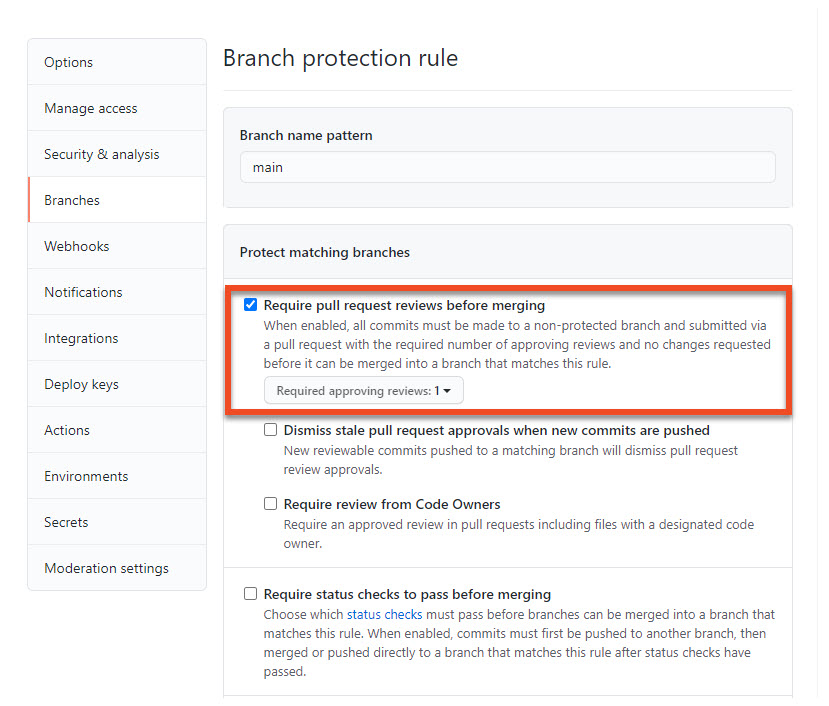
- Scroll down and click Create.
Sharing your repository with other users#
If you want to let other GitHub users contribute to your repository, follow these steps:
- Go to your repository page on GitHub and click Settings.
- In the menu on the left, click Manage access.
- To add a contributor, click Invite a collaborator.
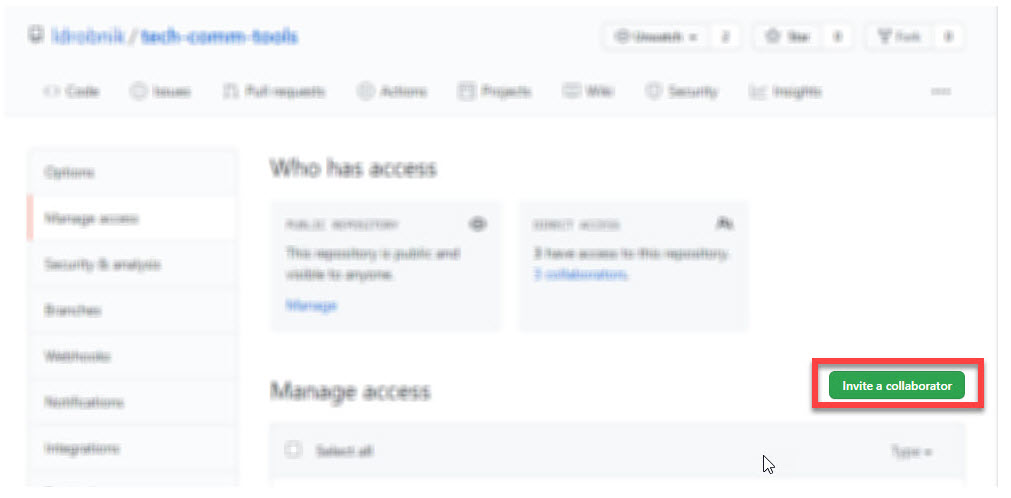
- Search the user you want to work with by their username, full name, or email and click Select a collaborator above.
Contributing to another user's repository#
If another GitHub user has shared their repository with you, and you want to contribute your work, do the following:
- In the invitation email from GitHub, click View invitation.
- Click Accept invitation.
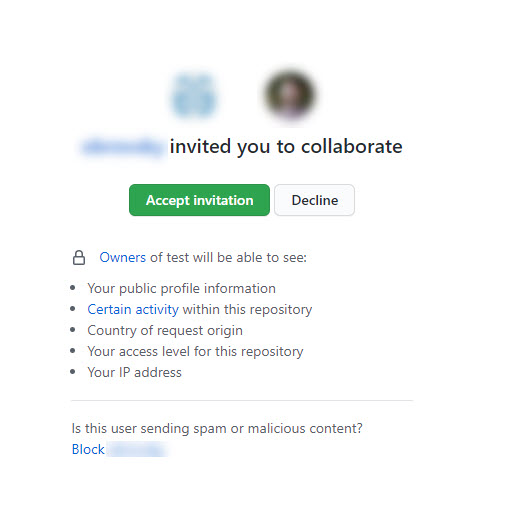
- To clone the repository on your computer, click Code > Open with GitHub Desktop.
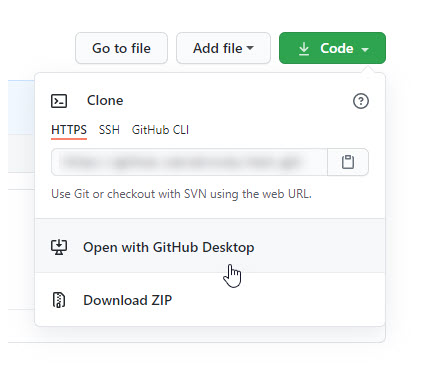
- In GitHub Desktop, enter Local path and click Clone.
- Create a new branch by clicking Current branch > New branch.
- Enter the name of your branch and click Create branch.
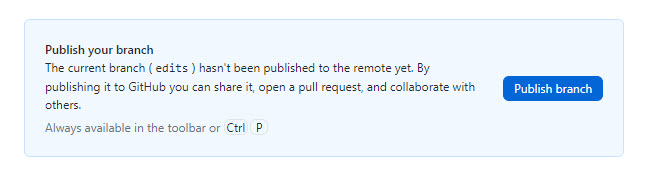
- Once you have made your changes, commit them and click Publish branch.
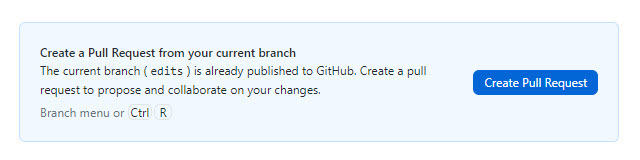
- To propose your changes to the repository owner, click Create Pull Request.
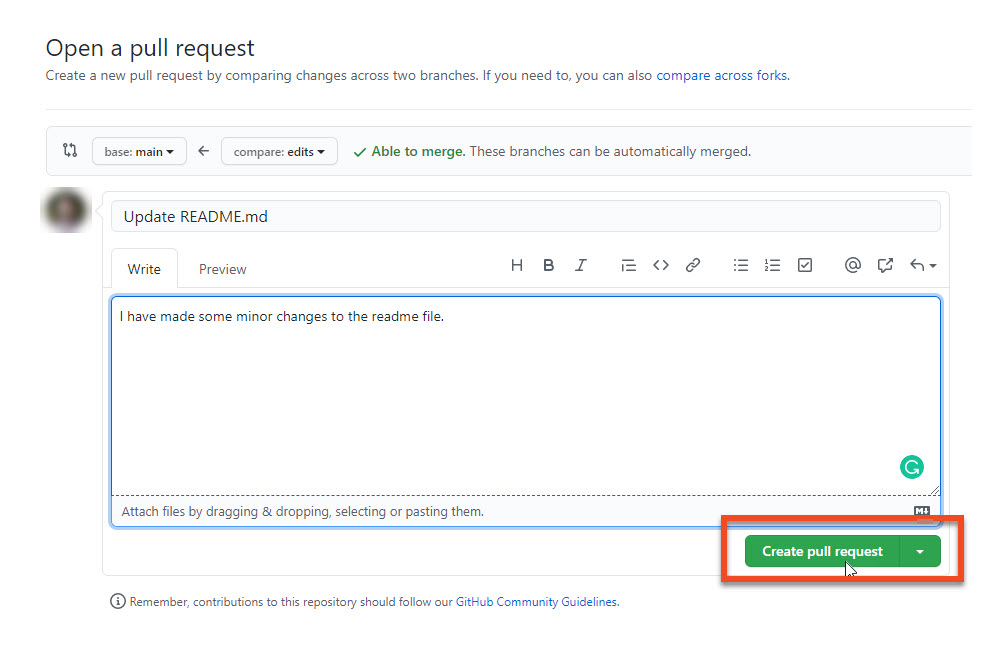
- On the GitHub page that opens, write any message to the repository owner and click Create pull request.
Reviewing contributor changes#
To accept or decline changes made by a contributor, follow these instructions:
- Go to your repository page on GitHub and click Pull requests.

- Click a pull request created by a contributor.
- To review the changes, click Add your review.
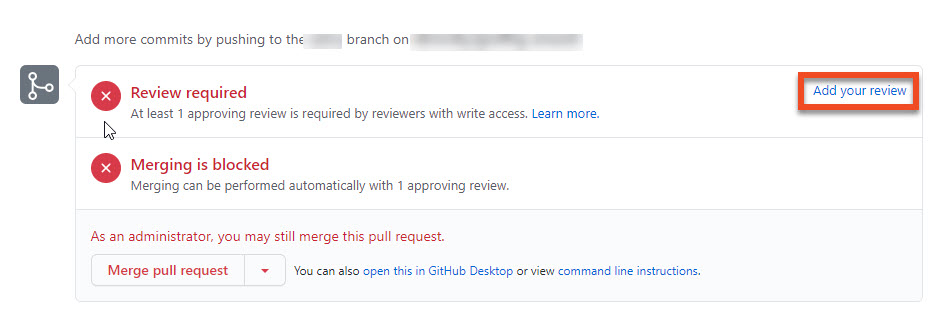
- Click Review changes, write any message to the contributor and tick one of the following options:
- Comment to submit feedback without approval.
- Approve to submit feedback and approve merging of the changes.
- Request changes to submit feedback that the contributor must address before merging.
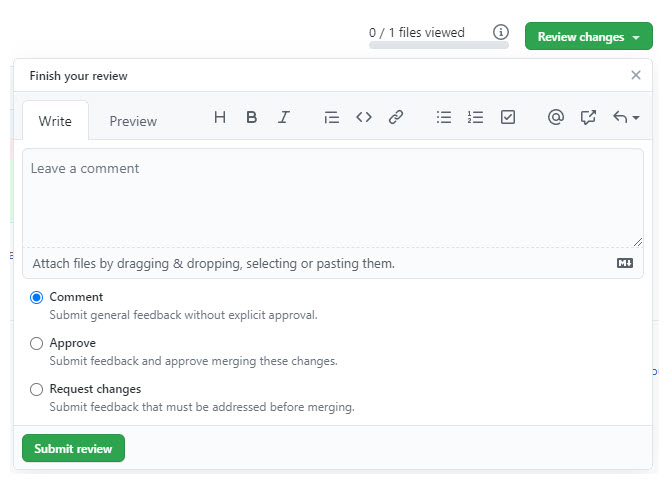
- Click Submit review.
- To merge any approved changes with your main branch, click Merge pull request.
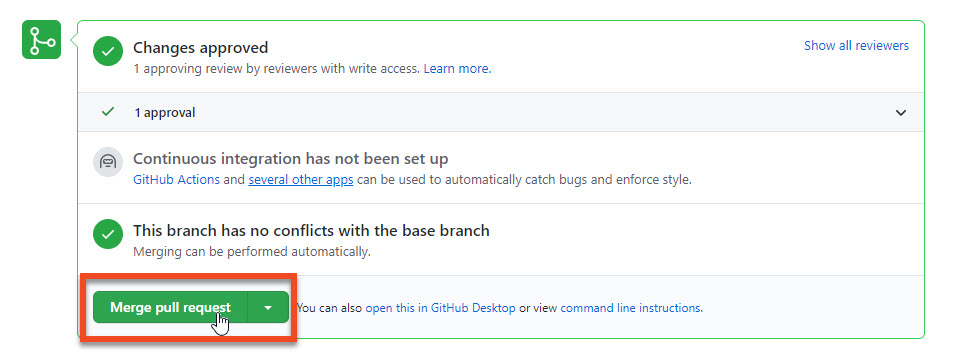
- Click Confirm merge.
- You can delete the contributor's branch by clicking Delete branch.
Resolving conflicts#
When multiple people work on the same files, they can introduce conflicting changes. To resolve conflicts introduced by a contributor, follow these steps:
- Go to your repository page on GitHub and click Pull requests.
- Click a pull request created by a contributor.
- Click Resolve conflicts.
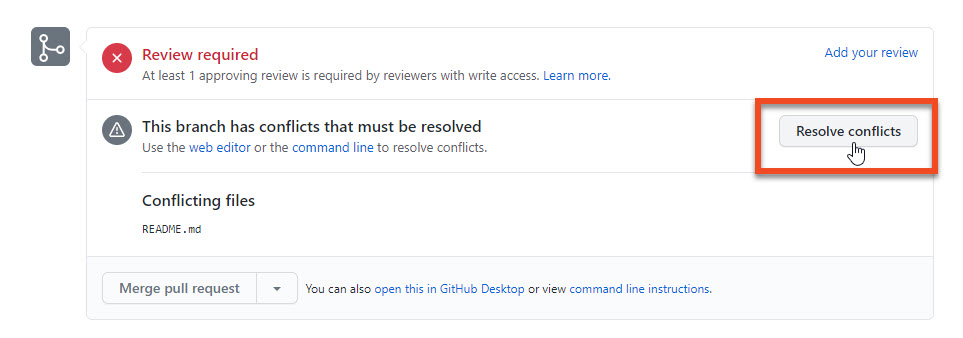
- Edit the document to remove the conflicts and click Mark as resolved.
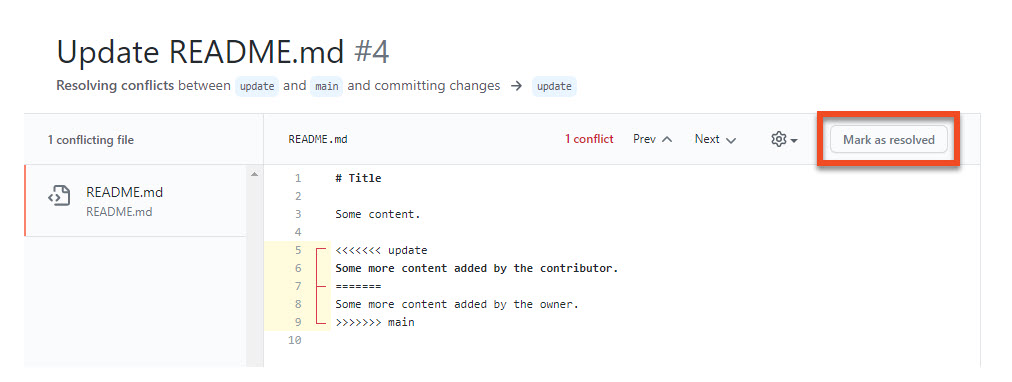
- Click Commit merge.